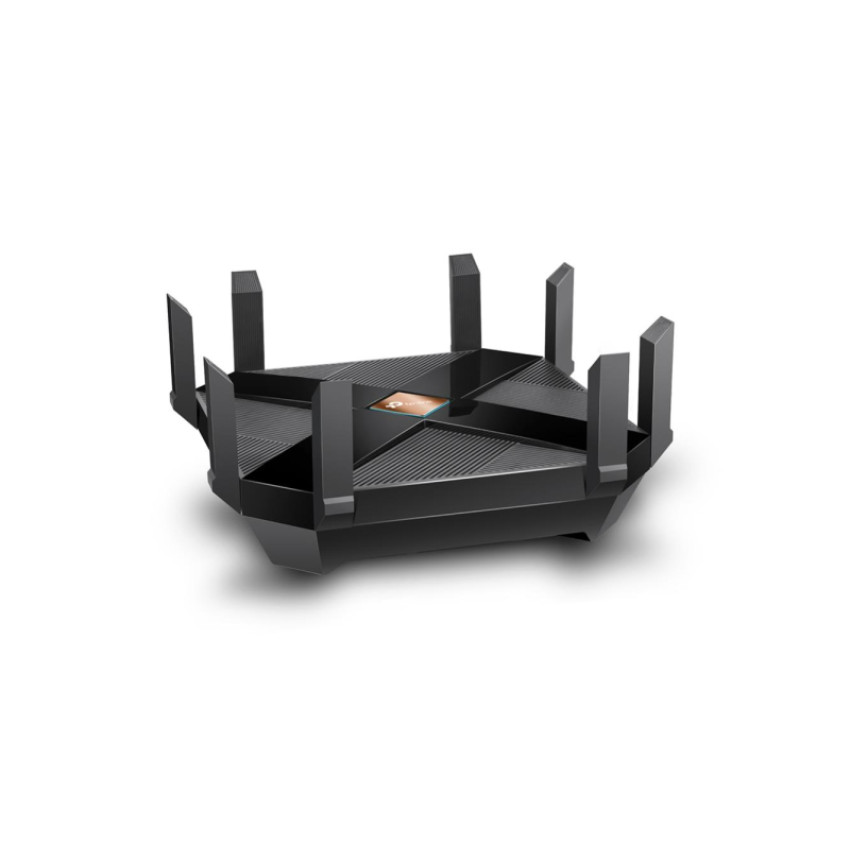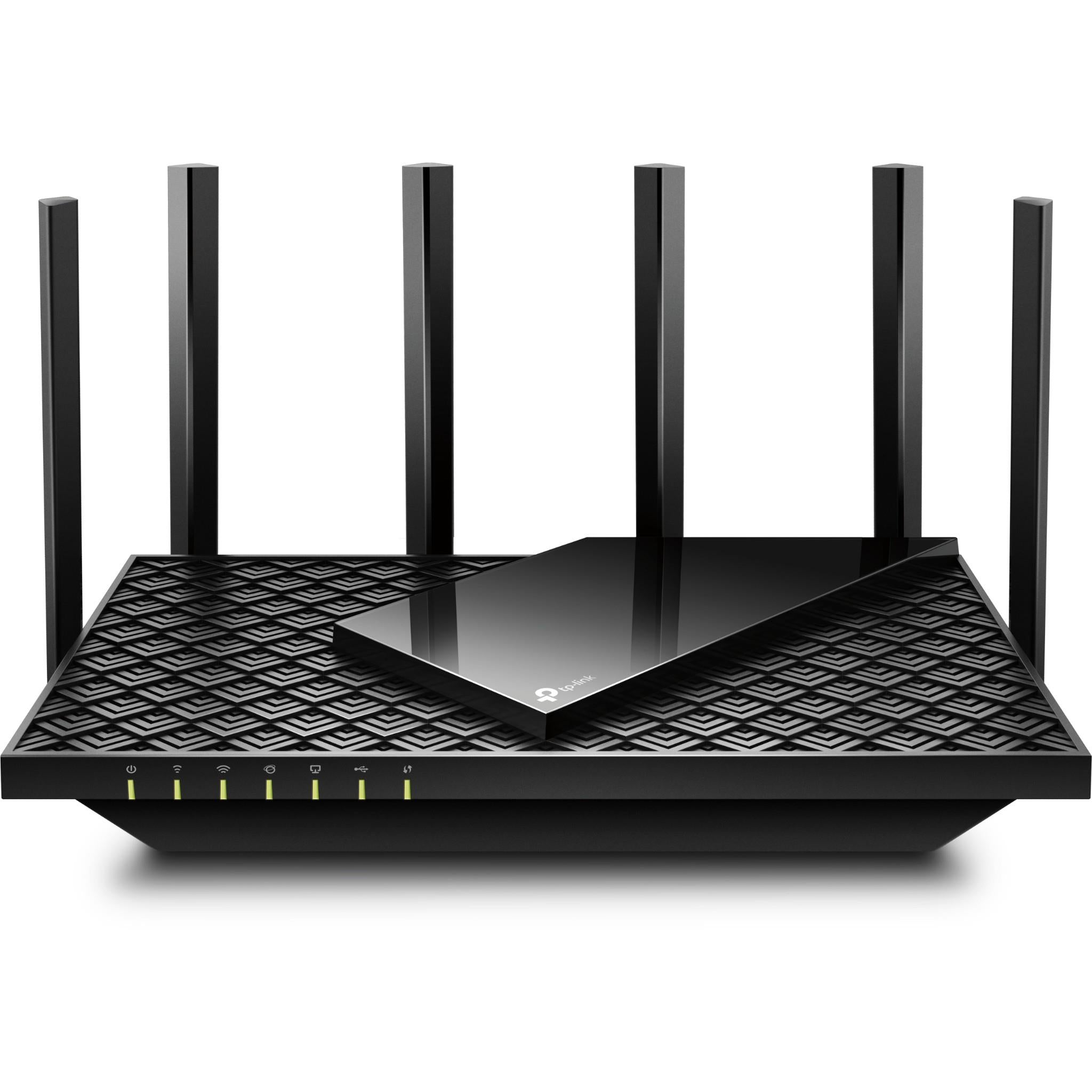
TP-Link TP-Link Archer C5400
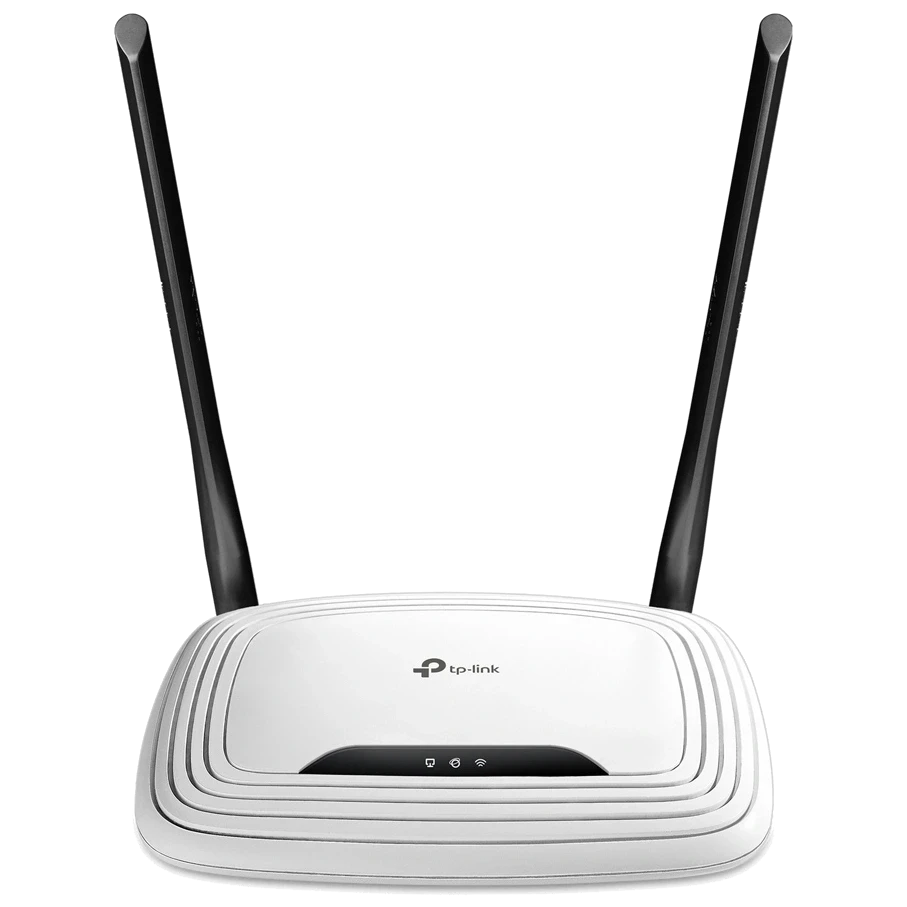
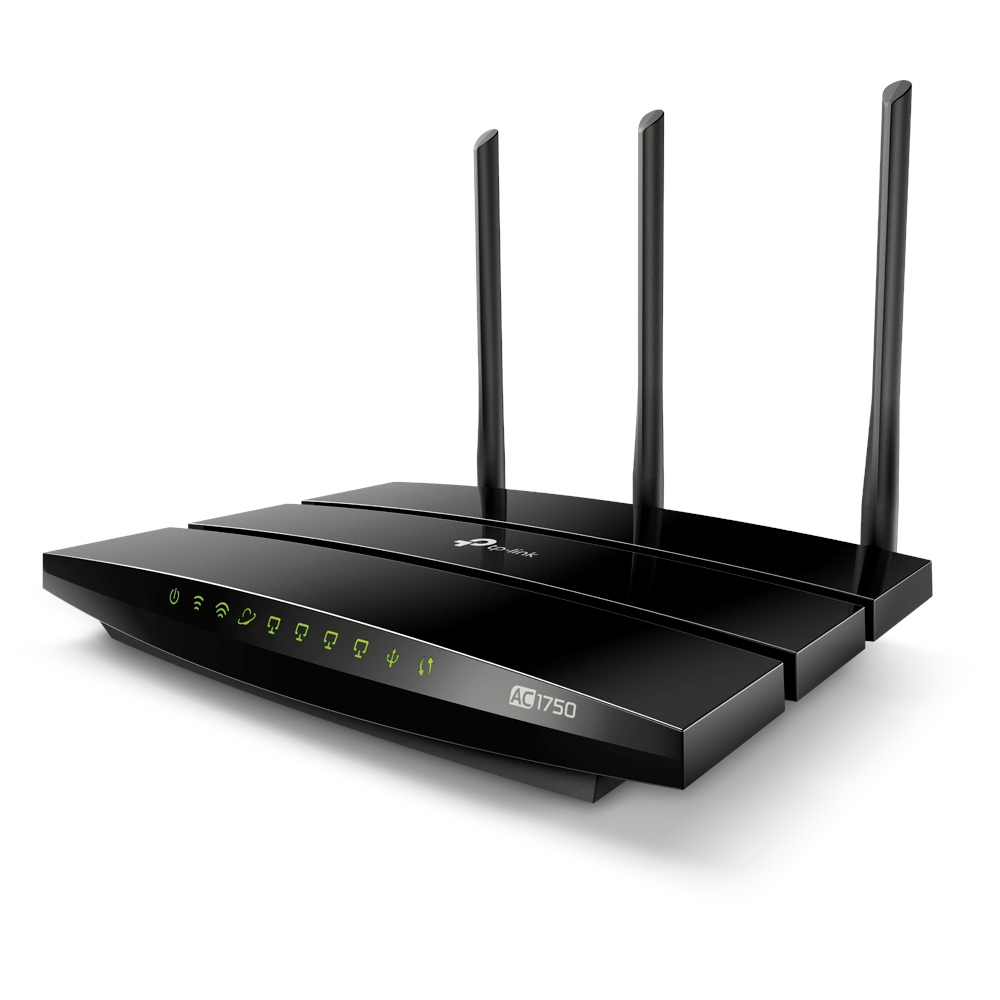
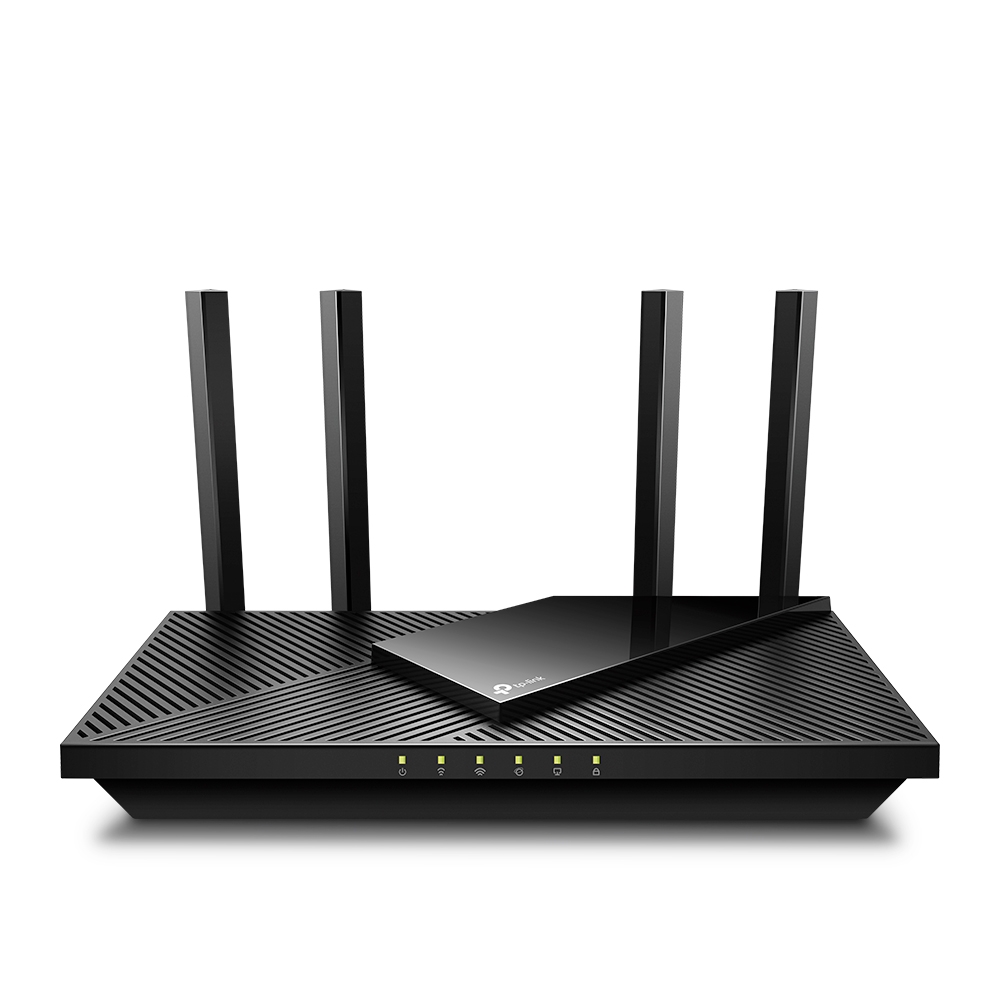
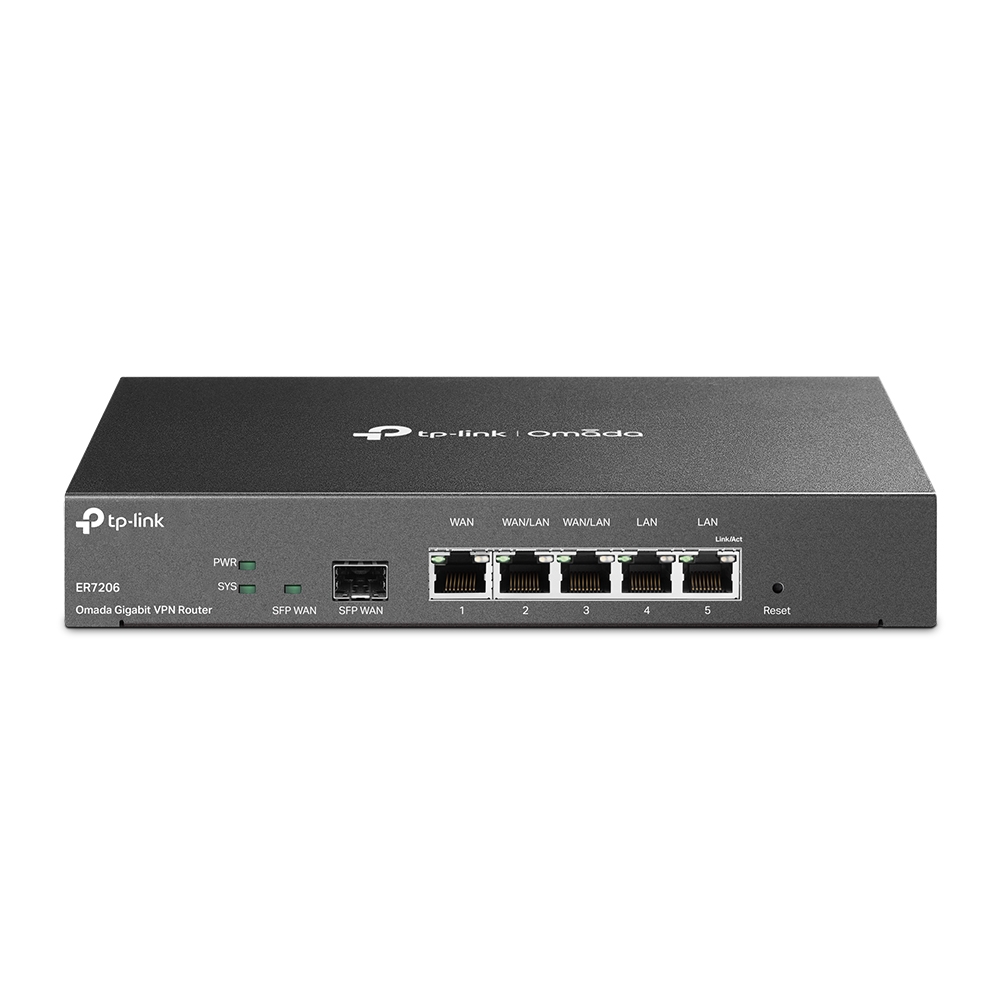
- The TP-Link Archer C5400 is a high-performance wireless router that provides fast and reliable internet connectivity for small to medium-sized networks.
Specifications
- CPU
- 1.4 GHz dual-core
- LAN
- 4x Gigabit Ethernet
- QoS
- Yes
- RAM
- 512 MB
- USB
- 1x USB 3.0, 1x USB 2.0
- WAN
- 1x Gigabit Ethernet
- Wi-Fi
- 802.11ac
- Bands
- Tri-band
- Flash
- 128 MB
- Ports
- 1x GE WAN, 4x GE LAN, 1x USB 3.0, 1x USB 2.0
- Antenna
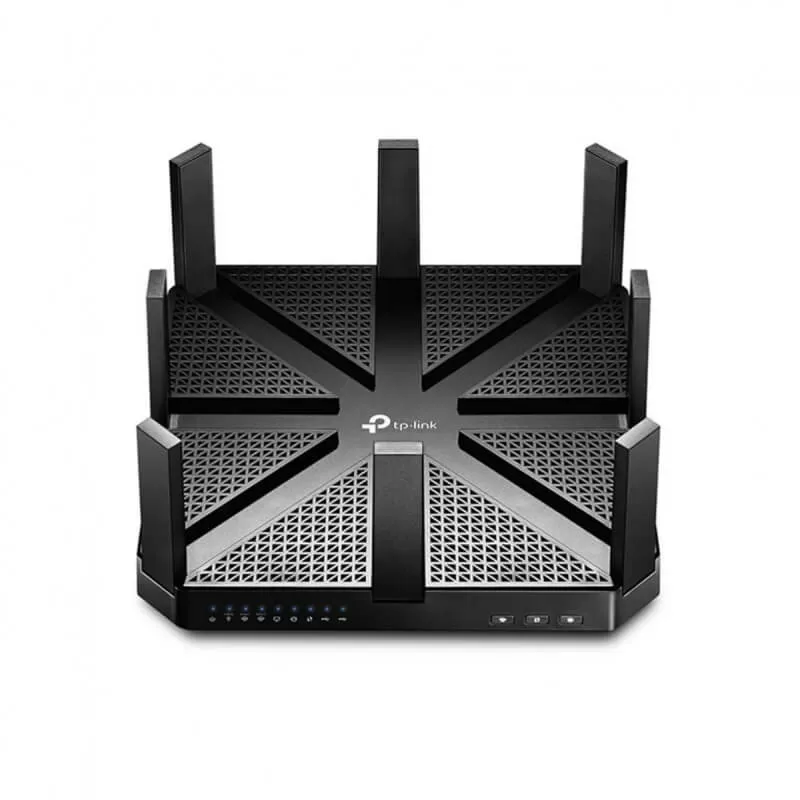
- 8 external antennas
- MU-MIMO
- Yes
- LAN Ports
- 4
- WAN Ports
- 1
Potential Threats
6 Known CVEs
Default IP
192.168.0.1
Default admin panel address for TP-Link TP-Link Archer C5400
Default Credentials — TP-Link TP-Link Archer C5400
| Username | Password | Access Type | Protocol | Port | Notes |
|---|---|---|---|---|---|
| web | HTTP | 80 |
Known CVE Vulnerabilities (6)
An issue was discovered on TP-Link TL-WR840N v5 00000005 0.9.1 3.16 v0001.0 Build 170608 Rel.58696n and TL-WR841N v13 00000013 0.9.1 4.16 v0001.0 Buil...
WebCore/platform/network/soup/SocketStreamHandleImplSoup.cpp in the libsoup network backend of WebKit, as used in WebKitGTK+ prior to version 2.20.0 o...
WebCore/platform/network/soup/SocketStreamHandleImplSoup.cpp in the libsoup network backend of WebKit, as used in WebKitGTK+ versions 2.20.0 and 2.20....
A remote attacker can bypass the System Manager Mode on the Canon MF210 and MF220 web interface without knowing the PIN for /login.html via vectors in...
soundlib/pattern.h in libopenmpt before 0.3.9 allows remote attackers to cause a denial of service (application crash) or possibly have unspecified ot...
wpforo_get_request_uri in wpf-includes/functions.php in the wpForo Forum plugin before 1.4.12 for WordPress allows Unauthenticated Reflected Cross-Sit...
FAQ
The most common default credentials for TP-Link TP-Link Archer C5400 are listed in the table above. Always change these immediately after setup.
The default username for TP-Link TP-Link Archer C5400 is typically "admin". The full list of default credentials including username, password, access type and port is shown in the table on this page.
Log in to the admin panel using the default credentials listed above. Navigate to Administration → Password or System → Account settings. Enter the current password and set a new strong password. Save the changes.
Locate the Reset button (usually a small pinhole on the back/bottom of the device). Hold it for 10-30 seconds while powered on until the LEDs flash. The device will reboot with default settings.
No. Default credentials are publicly known and frequently exploited by automated scanners. Change the admin password immediately after first login.
The default admin login address for TP-Link TP-Link Archer C5400 is shown in the "Default IP" field above. Most routers use 192.168.1.1 or 192.168.0.1. Open a browser on a device connected to the router and navigate to that IP.
Log in to the router admin panel at the default IP address. Go to Wireless or Wi-Fi settings. Find the WPA2/WPA3 passphrase field and update it. Save and reconnect your devices.
Change the default admin password and Wi-Fi password immediately. Disable WPS (Wi-Fi Protected Setup) — it is vulnerable to brute-force attacks. Enable WPA3 encryption if supported. Turn off remote management unless needed. Keep firmware updated.
TP-Link TP-Link Archer C5400 has 6 known CVE vulnerabilities documented in our database. The full list with severity ratings is shown on this page. Apply the latest firmware update from the manufacturer to address known issues.